The short answer
Repair with a complete v14 package that meets the application requirement. Do not rename VCRUNTIME140.dll to VCRUNTIME140_1.dll; the differently named files are not interchangeable.
Common symptoms
Match the complete error before following the checks:
- Launching reports that VCRUNTIME140_1.dll cannot be found.
- Reinstalling the application still leaves it exiting before loading.
- An earlier v14 installation or an old local app copy may not satisfy the updated program. Record the app version, repair the runtime, then restore app dependencies with the vendor's updater.
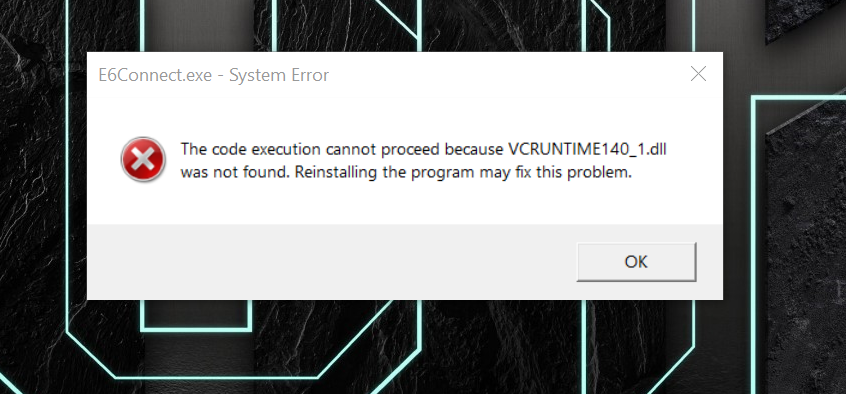
What causes VCRUNTIME140_1.dll
The same message can have different causes. Check Windows version, application architecture and logs.
Repair steps
Follow these 4 steps in order, starting with the simplest checks.
Identify the application architecture and Windows version
Difficulty: Easy5–10 minCheck the vendor's requirements for x86, x64 or ARM64. A 32-bit application on 64-bit Windows still needs the x86 runtime. Select packages for the application, not just the operating system.
You have recorded Windows version, application architecture and the exact missing filename.
Install or repair Visual C++ v14
Difficulty: Easy5–10 minSelect a Microsoft v14 package that supports your Windows version and meets the application's version requirement. Match the application architecture and choose Repair if installed. Do not remove all runtimes to install an older package.
Read Microsoft's official guidanceSetup finishes successfully. Restart if requested, then test. Record any setup error code.
Check versions and the loaded copy
Difficulty: Easy5–10 minAn earlier v14 installation or an old local app copy may not satisfy the updated program. Record the app version, repair the runtime, then restore app dependencies with the vendor's updater.
No system DLLs were overwritten; vendor-supplied dependencies in the game folder were repaired through the original installer.
Verify application files and test again
Difficulty: Easy5–10 minVerify files in the original game launcher or use the vendor's repair installer. Keep saves and settings, launch the same application through its original launcher and record any new error.
File verification completes and both launcher and application open. If the message changes, investigate the new filename.
Verify the fix
Verify with the same application and launch method that originally failed:
Frequently asked questions
Why is _1 needed when VCRUNTIME140.dll exists?
An application can depend on several runtime files. Check the complete package version rather than the presence of a single file.
Why is a dependency still missing after installing x64?
The launcher, plugins and main program can use different architectures. Check each against vendor requirements; 32-bit dependencies need the x86 package.
Can I copy a downloaded DLL into System32?
Use the complete Microsoft or application-vendor installer. A loose DLL can have the wrong architecture, version or origin and does not restore its dependencies. Do not overwrite system-directory files.